Skip to content
R&D COPILOT POS

Point of sale · part of RDCopilotOS

Ring it up. Stock and books follow.

A browser till for shops, cafés and small chains. Card or cash, fiscal receipts through your certified device where the law requires one, and a traceable stock movement for every line.

Till 1 · Ana 09:41 Online
Example data

Tap a product, then Charge. Payments, VAT and the fiscal device are set up and tested for each store before go-live.

What happens when you press Charge

One sale, six clear handoffs.

The till sells, Inventory shows the stock, Accounting keeps the books. Each handoff is agreed and tested with you before go-live.

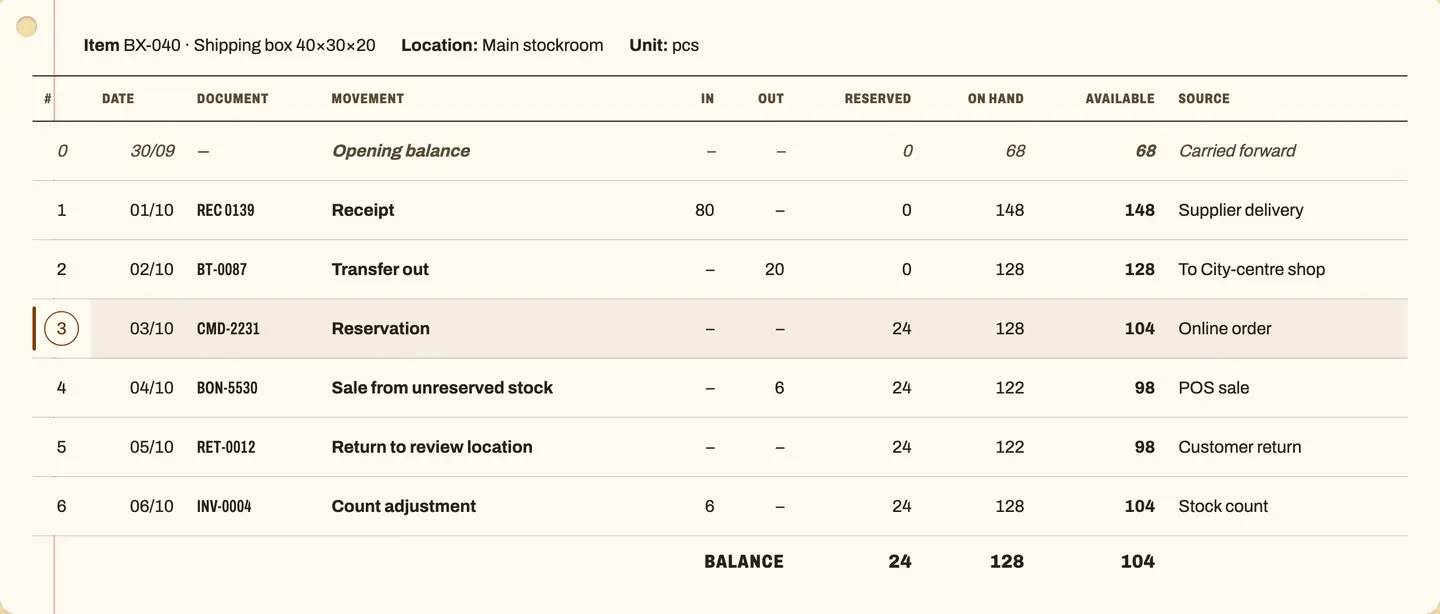
RDCopilot Inventory: the stock card for shipping box BX-040, every receipt, transfer, reservation and sale on its own line with the running on-hand and available balance, next to the receipt document behind line 1
INV · Example data
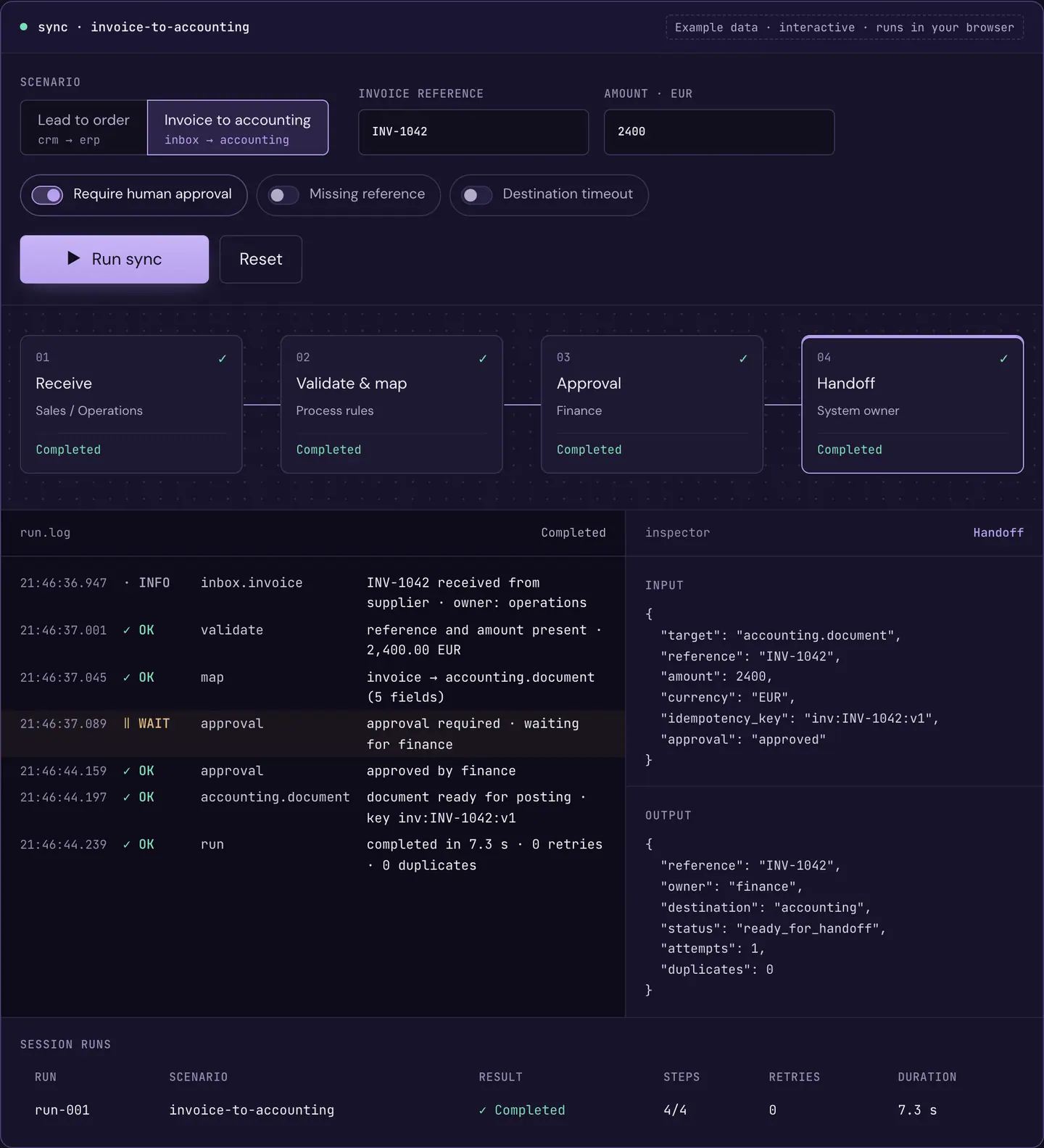
Example data: a completed invoice-to-accounting run, with the run log and the accounting handoff in the step inspector.
INT · Example data
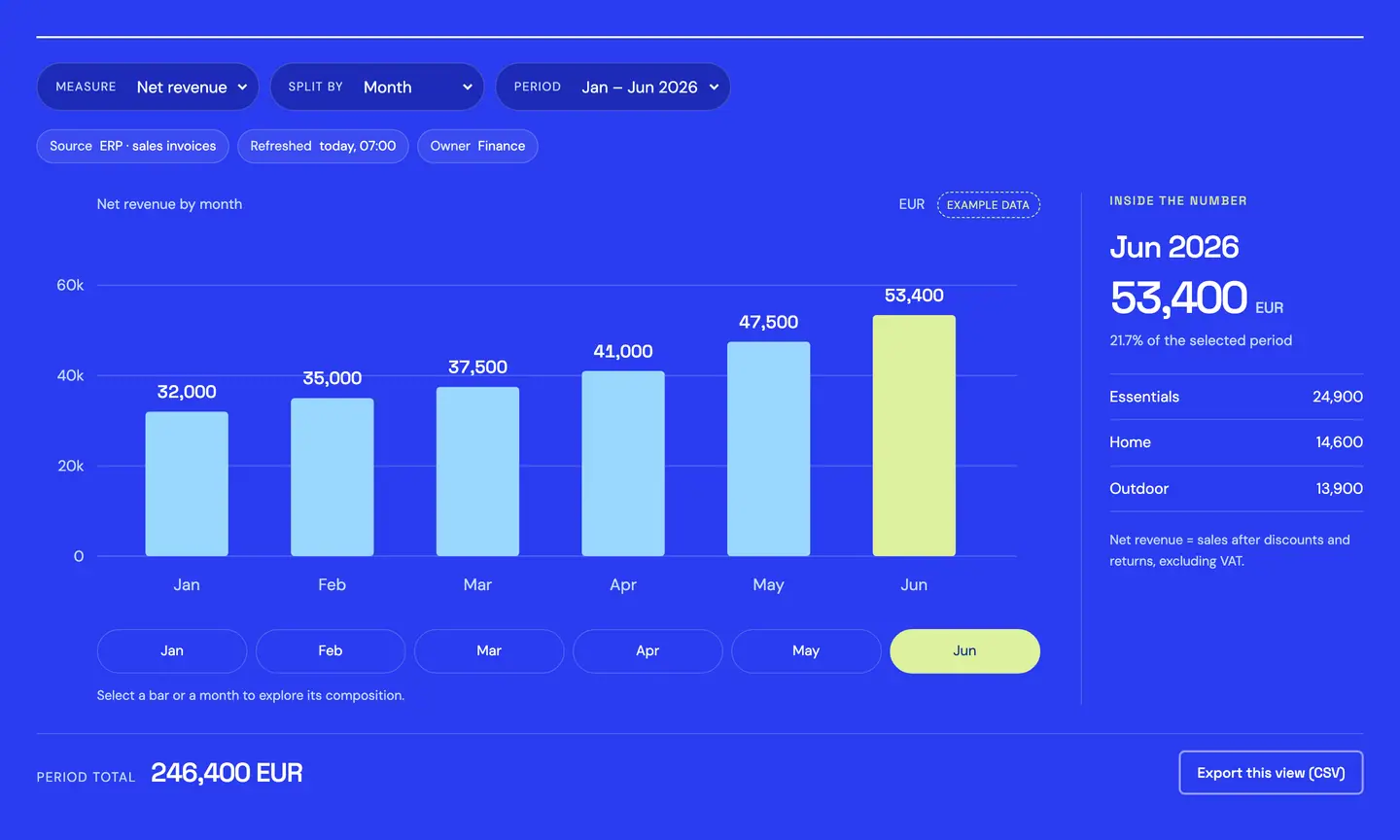
RDCopilot Reports: net revenue by month, January to June, June selected, with its product-line breakdown · example data
BI · Example data
  1. Step 1: Tap

    Items go into the basket from the catalogue.

  2. Step 2: Pay

    Card or cash; the terminal confirms before the sale closes.

  3. Step 3: Receipt

    Where the law requires one, the till sends the lines and payment to your certified fiscal device, which issues the fiscal receipt.

  4. Step 4: Stock

    Every sale line leaves a traceable stock movement.

  5. Step 5: Books

    The day’s sales reach Accounting in the way agreed during setup.

  6. Step 6: Close

    End-of-day totals by payment type, discounts and voids, to check against the fiscal printer’s Z report.

Returns are recorded against the original sale.

One till, three ways of selling

Set up for the way your counter works.

Scan, sell, done.

Barcodes, variants and prices come from the same catalogue your stock uses, so the till sells what the stockroom knows.

  • Barcode scanning and search by name or code
  • Variants such as size and colour
  • Discount limits per cashier profile
  • Returns from the original receipt
How a sale moves stock
Example data

Everything the counter needs

Built for the till, connected to the back office.

Selling

Quick for the cashier, safe for the store.

Discount limits are set per cashier profile; return and void rules are agreed and configured during setup.

  • Each shift opened by a named cashier
  • Returns from the original receipt
  • Discount limits per cashier profile
  • Park a basket and pick it up again
  • Customer on the sale for invoices
Example data

Payments

Card, cash or both.

Take card through the terminal from your payment provider, or cash at the counter. What the cashier does when a terminal stops answering is agreed and tested with you — see Payments and fiscal.

  • Card terminal and cash
  • Mixed payments on one sale
  • Change due shown as you type
  • How refunds are paid is configured during setup
Example data

Stock

Every sale line leaves a traceable stock movement.

You can follow each movement back to the receipt that caused it, so the shelf report and the till tell the same story. How stock is shared between the till and Inventory is agreed and tested for your stores before go-live.

  • Each movement linked to its receipt
  • Returns recorded against the original sale
  • Returns and voids show in stock and reports
  • Stock locations per store
  • Stock shown on the till where you want it
Example data

Back office

Close the day without a spreadsheet.

Shifts and end-of-day totals per till, with differences shown before anyone signs off.

  • Shift open and close with opening float
  • Cash count against expected cash
  • Totals by payment type and cashier
  • Sales reports in RDCopilot Reports
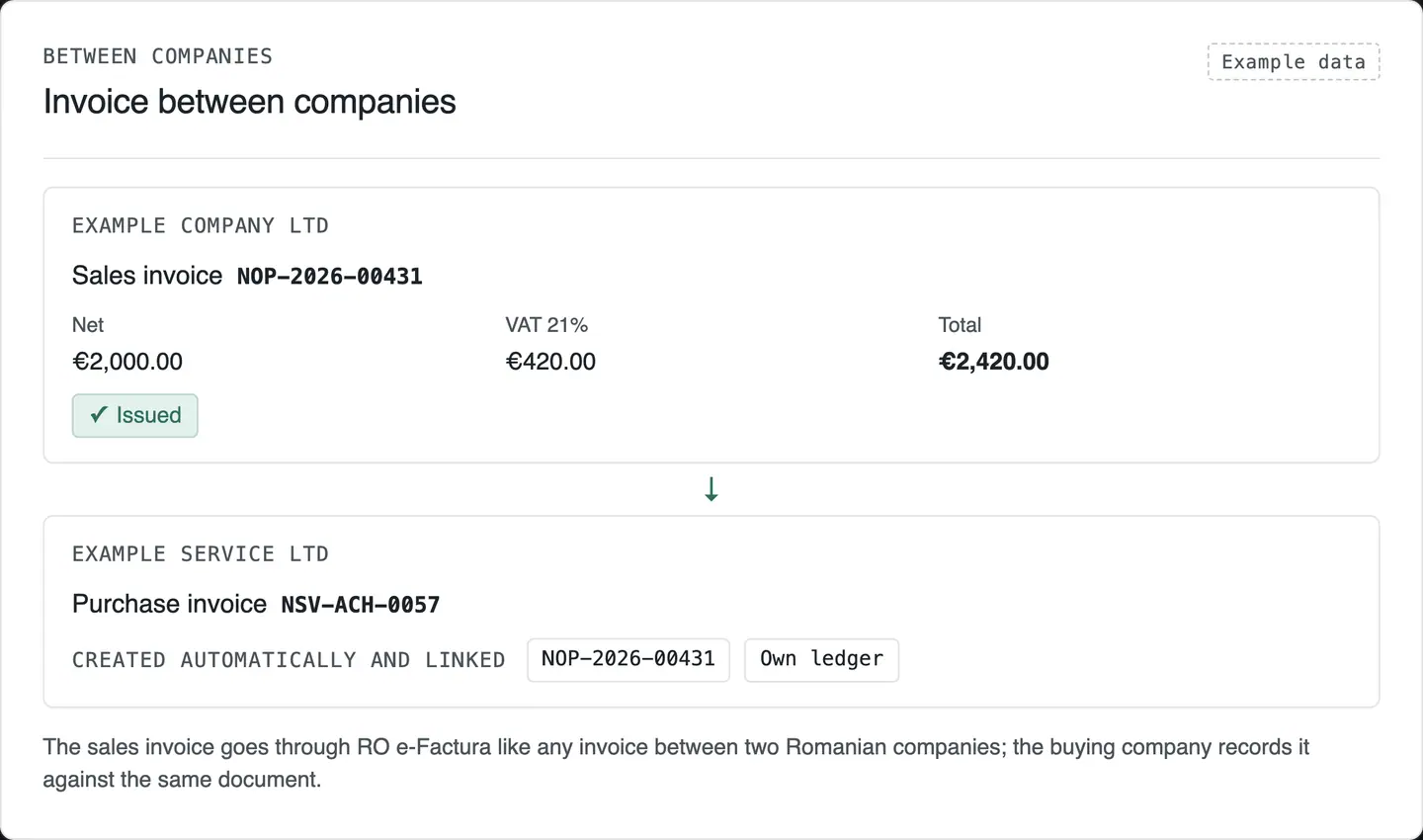
  • Each sale posted to Accounting as it is recorded
Example data

Hardware

Works with the counter you have, or the one you plan.

We don’t sell hardware. Fiscal printers come from an authorised distributor; we test yours, or the model you plan to buy, with the till before go-live.

  • Tablet or PC A browser till on a tablet or PC, on a stand.
  • Fiscal printer Certified model where required, integration tested on yours.
  • Card terminal From your bank or payment provider.
  • Barcode scanner Checked with the till during setup.
  • Cash drawer Scoped on request.
  • Kitchen or second printer Scoped on request.
  • Customer display The fiscal printer has its own; a second screen is scoped on request.

Every device is tested with your store team before the first real sale.

The two parts we test hardest

Card terminal and payments

We connect the terminal from your payment provider, test approvals, declines and refunds, and agree what the cashier does when a payment doesn’t answer.

Recover a checkout after a payment timeout

Fiscal printer

We scope the integration on your actual fiscal device, its documented interface and who services it, then test paper-out, power cuts and resends with your team. We confirm support only after those tests pass.

How we scope a fiscal device integration

Connect a checkout sale to its stock movement

When the internet drops

Keep selling. Catch up cleanly.

What the till may do offline, and how it catches up, is agreed and tested for your store before the first day.

  1. Online

    Sales reach Inventory and Accounting as they happen; sales made offline post when the till reconnects.

  2. Connection lost

    The till keeps selling what you agreed it can sell offline, and shows which sales are waiting.

  3. Back online

    Waiting sales catch up, and anything that needs a person is listed for review.

Example data

What we agree with you

  • Which payment types are allowed offline (card depends on your terminal and provider)
  • Fiscal receipts: where a fiscal device is used, it issues and stores them itself and reports to the tax authority over its own connection
  • How long the till may keep selling offline
  • Who checks the review list

Part of RDCopilotOS

The till is the front door. The rest of the company connects behind it.

RDCopilotOS is one operating system for the whole business: ERP, inventory, accounting, CRM, HR, reports, integrations and AI. The till is one module; each link below opens its product.

Using another ERP or accounting system? We check the connection during scoping. See integrations

From first call to first receipt

Four steps to a live counter.

  1. Step 1: Scope

    We walk your counter: stores, tills, products, payment provider, fiscal printer and the systems you already use. You get a written scope and quote.

  2. Step 2: Configure

    Catalogue, barcodes, price lists, VAT rates per product, cashier profiles, receipt layout.

  3. Step 3: Test on your hardware

    Devices, payments, stock handoff and offline behaviour tested with your team.

    See Hardware
  4. Step 4: Go live and train

    Cashier training at the counter, a first day with us on call, and support in English or Romanian afterwards.

Pricing

One setup fee. One monthly licence. No surprises.

Every counter is different, so we quote after scoping. The model is always the same.

01

One-off setup

  • Scoping and written quote
  • Catalogue, cashier profiles and receipt configuration
  • Hardware and fiscal printer tests
  • Product, barcode and price import
  • Training and first-day support

02

Monthly licence, per till

  • The till software, licensed per till
  • EU hosting and backups
  • Updates, including legislative ones (VAT rates, fiscal rules)
  • Support in English or Romanian
  • Connections to the RDCopilot products you use

Not included

Hardware, card processing fees (from your payment provider) and fiscal printer servicing (from its authorised distributor or accredited service unit).

Extra work is quoted first and billed only once you approve it in writing.

Get a quote for my stores

Questions

Questions shops and cafés ask first.

Does the till keep working without internet?

Within limits agreed for your store. What it may do offline and how it catches up is tested before go-live.

How offline works
Which hardware do I need?

A tablet or PC, a fiscal printer, and usually a card terminal and barcode scanner. You can keep what you have; we check it during scoping.

Hardware
Does it work with my fiscal printer?

Where your country requires a fiscal device, it needs a certified model with an interface for connecting a POS. We test your exact model with the till before go-live and confirm support only after those tests pass. Country rules, such as printing the buyer’s tax ID on request, are checked on your model.

Payments and fiscal
What happens if the fiscal printer stops working?

Most fiscal regimes set a fallback, such as a manual register and paper receipts until the device is repaired by its authorised service. We agree with you during setup how the till supports the procedure that applies to you.

Payments and fiscal
Can I use my current card terminal?

Usually, yes. If your provider’s terminal can be integrated, the total goes straight to it; if not, the cashier confirms the card payment on the till. We check which applies in step one.

Payments and fiscal
How do returns work?

A return starts from the original receipt and is recorded against that sale. Discount limits are set per cashier profile; return and void rules are agreed and configured during setup.

I have several stores. Is that one setup?

Yes. One catalogue and set of cashier profiles, a stock location per store, tills per store and end-of-day reports together.

How do we switch from our current till?

We import your products, barcodes and prices, run the new till next to the old one on test sales, then pick a quiet day to switch. Opening stock is agreed with your accountant.

Where is our data stored?

On RDCopilot’s EU-hosted service, with backups included. It can also run in your own cloud or on your servers.

Tell us about your counter.

How many stores and tills, what you sell, which fiscal printer and payment provider you use, and the systems you want connected. We’ll come back with a scope and a quote.